
Managing Organization Profile
The Managing Organization Profile section allows you to update and maintain your organization’s core details as well as your personal profile information. Keeping this information accurate ensures proper branding, correct scheduling, and a better overall experience across the platform.
How to Access Organization Profile
- Inside the header there is profile icon click on that a dropdown will appear

- Click on Settings option
You will get a popup wizard:
Organization Details
This section allows you to manage your organization’s primary information.
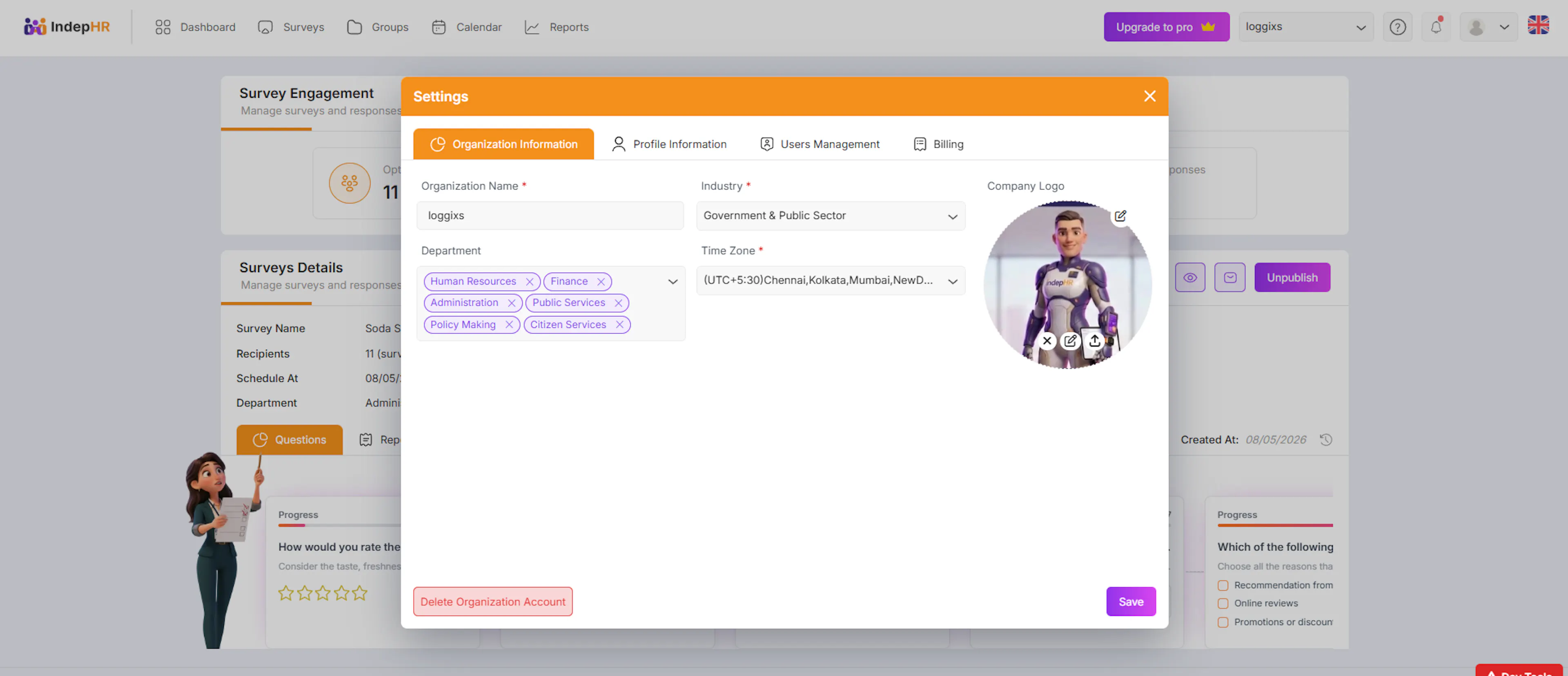
What You Can Do:
1. Update Company Logo
- Company Logo Upload your company logo by clicking the upload area or dragging and dropping an image file. Your logo appears on survey invitation emails and report headers. If no logo is uploaded, a default IndepHR placeholder is used instead.
This logo will be used across surveys and communications.
2. Edit Organization Name
- Organisation Name Update your company name if it changes. This name is used across the platform for identification and appears in reports and communications sent to recipients.
3. Select Industry
- Industry Select or update the industry your organisation belongs to. This helps IndepHR provide relevant survey recommendations and benchmarks suited to your sector.
4. Manage Departments
- Departments Add or remove departments to reflect your current organisation structure. Departments are used to organise recipients when creating surveys and to set user profiles. You can add new departments here at any time — you are not limited to what was set up during onboarding.
5. Update Time Zone
- Time Zone Select your organisation's time zone. This ensures surveys are scheduled and deadlines are set at the correct local time, and that notification emails are sent at the right time for your recipients. Always confirm your time zone is correct before publishing your first survey.
This ensures:
-
Surveys are scheduled correctly
-
Notifications are sent at the right time
6. Delete Organization
-
The Organisation Profile page includes an option to delete your organisation. This is a permanent and irreversible action.
Before deleting, be aware of the following:-
All surveys, reports, responses, and user data associated with your organisation will be permanently deleted within 24 hours
-
This action cannot be undone
-
Once deleted, your organisation and all its data cannot be recovered
-
Only proceed with deletion if you are completely certain. If you are unsure, contact IndepHR support before taking this action.
Profile Information
This section allows you to manage your personal profile details.
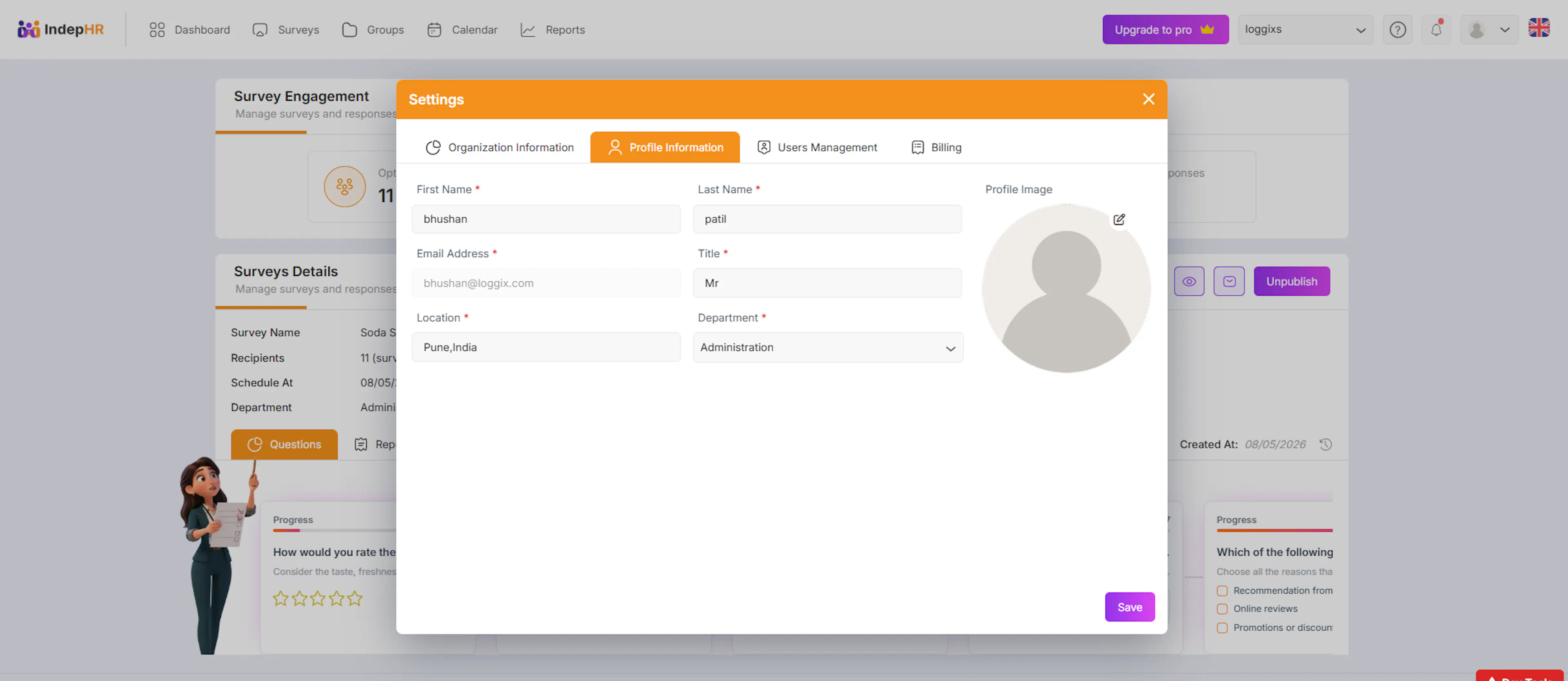
What You Can Do:
1. Upload Profile Image
-
Add your profile picture or update an existing one
-
This can be your photo or any image representing you
2. Update Personal Details
You can edit or add the following information:
-
First Name
-
Last Name
-
Email Address
-
Job Title
-
Location
-
Department
3. Save Changes
-
After making updates, ensure you save your changes
-
Your updated information will be reflected across the platform
4.troubleshooting
-
Cannot edit organisation details Only Organisation Admins can edit organisation settings. If the fields appear greyed out or the Save button is not available, your account does not have admin permissions. Contact your Organisation Admin to request access or ask them to make the changes.\
-
Logo not appearing on surveys or reports After uploading a new logo, allow a few minutes for the change to propagate across the platform. If the logo still does not appear after 10 minutes, try clearing your browser cache and checking again.\
-
Department not appearing when creating a survey Make sure the department was saved correctly after adding it. Return to Organisation Details, confirm the department is in the list, and save the page again before returning to survey creation.
Why This Section Matters
Keeping your organization and profile information updated helps:
-
Maintain accurate organizational structure
-
Ensure proper branding in surveys and communication
-
Enable correct scheduling and notifications
-
Improve personalization and system recommendations
Best Practice
It is recommended to review this section periodically to ensure all information remains up to date, especially when there are changes in organization structure or user roles.