
Dashboard Overview
The dashboard is the first screen you see after logging in. It gives you a central view of your surveys, reports, and organisation activity so you can quickly see what needs attention and what is in progress. Everything you need to manage your surveys day to day is accessible directly from here.
This helps you track progress, take quick actions, and stay updated without navigating to multiple pages.
Top Overview Cards (Quick Insights)
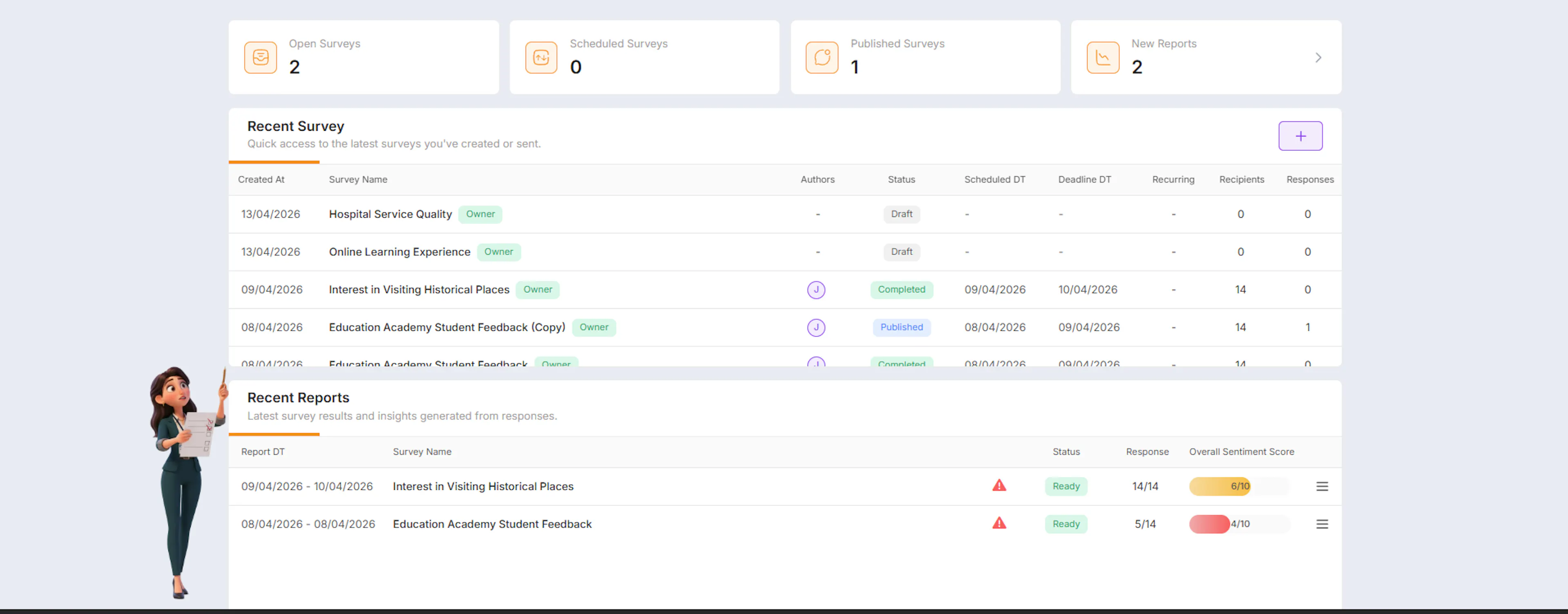
At the top of the dashboard, you will see summary cards that show important numbers:
-
Open Surveys – Surveys that are currently active or in progress
-
Scheduled Surveys – Surveys planned for future dates
-
Published Surveys – Surveys that have been sent to recipients
-
New Reports – Recently generated reports based on survey responses
These cards give you a quick snapshot of your activity.
Quick Action:
- Clicking on New Reports will take you directly to the Reports page, where you can view all generated reports in detail.
Recent Survey Section
Below the summary cards you will find the Recent Surveys section. This lists the latest surveys you have created or managed, with the following information for each:
-
Survey Name — click to open the full survey details
-
Created Date — when the survey was created
-
Author — who created the survey
-
Status — the current state of the survey
-
Scheduled Date and Time — when the survey is set to go live
-
Deadline — when the survey closes
-
Recipients — how many people have been invited to respond
-
Responses — how many responses have been received so far
To create a new survey directly from the dashboard, click the + icon in the top right corner of the Recent Surveys section.
Survey Status Labels
Every survey in the Recent Surveys section carries a status label. Understanding these labels helps you know exactly where each survey stands:
-
Draft — created but not yet published
-
Upcoming — published and scheduled but not yet started
-
Active — currently open and collecting responses
-
Closed — deadline has passed and responses are no longer being collected
-
Report Pending — survey is closed and the report is being generated or is under review
-
Report Ready — report has been approved and is available to view
This helps you quickly understand the current state of each survey.
Actions you can take:
-
Click on any survey name to open and view full survey details
-
Track progress (e.g., how many responses are received)
-
Identify which surveys are still in draft or completed
Create New Survey
-
On the top-right corner of this section, you will see a “+” (Plus) icon
-
Click on it to create a new survey instantly
This provides a quick way to start building surveys without navigating away.
Recent Reports Section
The Recent Reports section shows the latest reports generated from completed surveys. For each report you can see:
-
Report Date — when the report was generated
-
Survey Name — which survey the report relates to
-
Status — whether the report is pending review or ready to view
-
Number of Responses — how many responses were collected
-
Overall Sentiment Score — a quick indicator of whether the overall feedback was positive, neutral, or negative
Click on any report to open the full results, view detailed insights, and access the action plan and summary options.
Actions you can take:
-
Click on any survey name in the Recent Surveys section to open and view full survey details
-
Monitor response counts in real time to track participation without navigating away from the dashboard
-
Click the + icon in the Recent Surveys section to create a new survey instantly
-
Click on any report in the Recent Reports section to open detailed insights and sentiment analysis
-
Click the New Reports summary card at the top to jump directly to the full Reports page
-
Send a reminder to recipients who have not yet responded by opening the relevant survey from the dashboard
Why Dashboard is Important
The dashboard is designed to help you:
-
Get a quick overview of all survey activities
-
Track survey progress and responses
-
Access reports and insights quickly
-
Take quick actions like creating surveys or viewing reports
Tips
-
Check the dashboard regularly to stay updated on survey performance
-
Use the top cards for quick insights instead of navigating multiple pages
-
Monitor response counts to ensure good participation
-
Review reports as soon as they are ready for timely decision-making